Data wrangling

BIOL33031/BIOL65161

Data wrangling

What is data wrangling?

When we collect biological data, it never arrives perfectly polished. Files might have missing values, inconsistent names, or more information than we really need.

Before we can analyse or visualise, we first have to wrangle our data into a form that both we, and R, can understand. Part of this also involves checking if there are any problems with the data (like missing values), or anything unexpected that might be confusing (like columns with unintuitive names).

The word wrangle can mean either “to have an argument that continues for a long time” (chiefly UK), or “to take care of, control, or move large animals, often with difficulty or coercion” (chiefly North American). In dealing with biological data, either definition can sometimes feel appropriate!
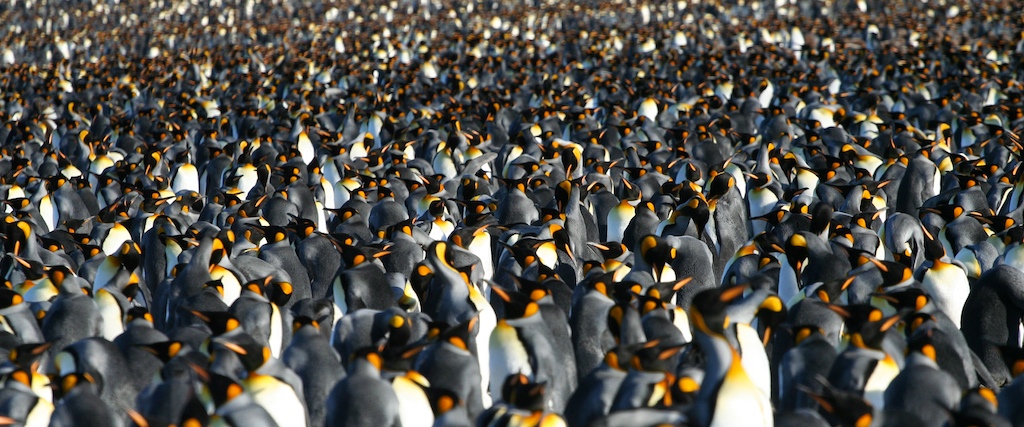
A colony of thousands of King Penguins. The colony fills the entire image, showing no ground or sky. The intent is to evoke a chaotic disorganised scene in need of 'wrangling'.

“King Penguin Colony” (Aptenodytes patagonicus) by Scott Henderson, CC BY-NC-SA 2.0

Remember tibbles?

In the first session, we made some tibbles by hand to see how R stores data.
A tibble is just a table where:

  • Each column is a variable (e.g. species, sepal length)
  • Each row is an observation (e.g. one plant)
  • Each cell is a single value (i.e. the measurement of that variable for that individual)

Example from last time:

library(tidyverse)

plants <- tibble(
  treatment = c("control", "fertilised", "control"),
  height_cm = c(15, 20, 13),
  survival = c(TRUE, TRUE, FALSE)
)

plants

Now, it would be a colossal waste of time if we had to write out each tibble manually!
Typically in R, we read in data from files on our computer or from the internet.

Telling R where to look for data

  • Every time R looks for a file, it needs to know where to look.
  • The simplest way to do this is to set your working directory, and keep your .R scripts and data files together in the same place
  • Imagine your computer as a giant house 🏡. The working directory is the room you’re currently in. R will look for files within that room. If the file is in another room, R won’t find it unless you give the full address.

You can check or set the working directory with getwd() and setwd():

getwd()                 # shows where you are now
setwd("path/to/folder") # moves R to another room

You can also set the working directory using the menu:
“Session > Set Working Directory > Choose Directory…”

Or, you can use the Files tab on the right:
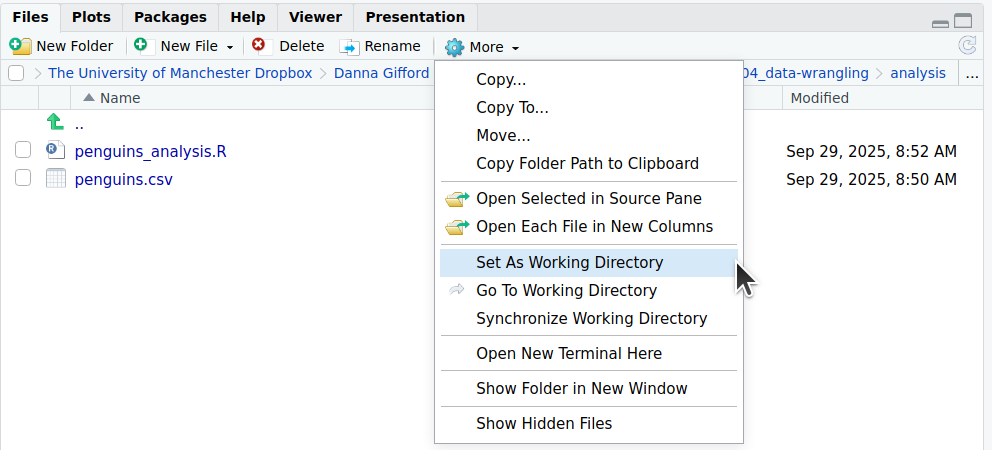
A screenshot of how to set the working directory from the files tab.

Palmer penguins dataset 🐧

Let’s have a look at some common data wrangling steps using real data.

The palmerpenguins dataset1 contains size measurements for 3 penguin species observed between 2007‒2009 in the Palmer Archipelago, Antarctica, by Dr. Kristen Gorman with the Palmer Station Long Term Ecological Research Program.

If you’re following along in R, please download penguins.csv and save it to your working directory.
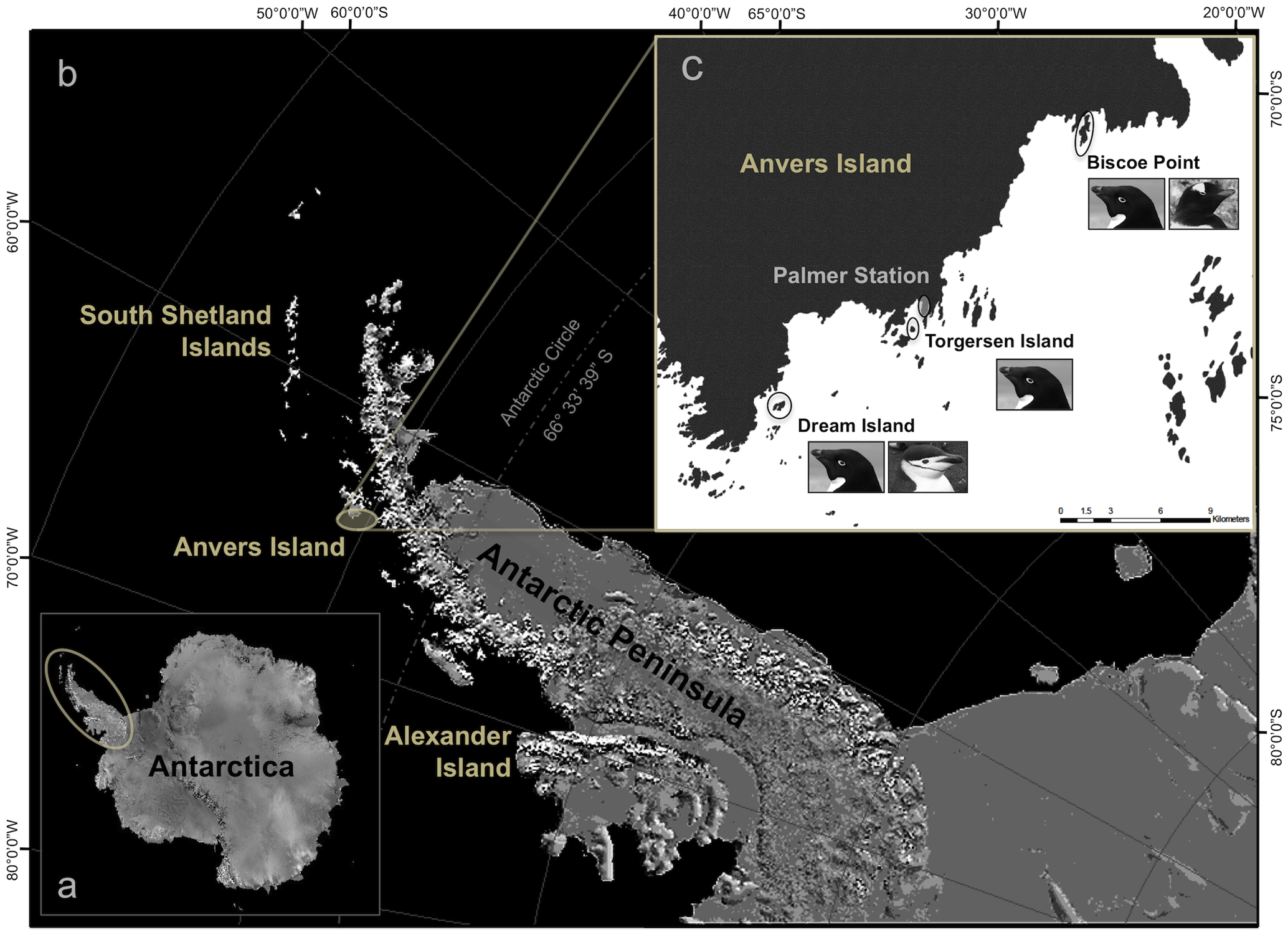
Sampling context: (a) Antarctica. (b) Antarctic peninsula. (c) Islands where penguins were sampled: Dream, Torgersen, and Biscoe.2

Importing data

Most of the time, our data will be stored in CSV files (comma-separated values).
These are simple text files that can be read by almost any program.

In the tidyverse, we use read_csv()1:

library(tidyverse)

# First set working directory to where your file is saved. It looks slightly different on different systems:
setwd("C:/Documents/04_data-wrangling/analysis") # Windows
setwd("/Users/danna/04_data-wrangling/analysis") # Mac
setwd("/home/danna/04_data-wrangling/analysis")  # Linux

# Loading the data using read_csv():
# From a file saved on your computer in your working directory
penguins <- read_csv("penguins.csv")

# From a folder called 'data' within your working directory (a 'relative path')
penguins <- read_csv("data/penguins.csv")

# From a file saved somewhere else on your computer (an 'absolute path')
penguins <- read_csv("C:/Documents/data/penguins.csv")              # Windows
penguins <- read_csv("/home/username/Documents/data/penguins.csv")  # Mac
penguins <- read_csv("/Users/username/Documents/data/penguins.csv") # Linux

# Directly from a URL
penguins <- read_csv("https://raw.githubusercontent.com/allisonhorst/palmerpenguins/master/inst/extdata/penguins.csv")

Meeting the tibble

When you use read_csv(), R gives you a tibble, just like the ones we wrote by hand.

Typing in the name of the tibble and pressing Ctrl+Enter (Windows/Linux) or Cmd+Enter (Mac) will print the first 10 rows to the Console window:
penguins
# A tibble: 344 × 8
   species island    bill_length_mm bill_depth_mm flipper_length_mm body_mass_g
   <fct>   <fct>              <dbl>         <dbl>             <int>       <int>
 1 Adelie  Torgersen           39.1          18.7               181        3750
 2 Adelie  Torgersen           39.5          17.4               186        3800
 3 Adelie  Torgersen           40.3          18                 195        3250
 4 Adelie  Torgersen           NA            NA                  NA          NA
 5 Adelie  Torgersen           36.7          19.3               193        3450
 6 Adelie  Torgersen           39.3          20.6               190        3650
 7 Adelie  Torgersen           38.9          17.8               181        3625
 8 Adelie  Torgersen           39.2          19.6               195        4675
 9 Adelie  Torgersen           34.1          18.1               193        3475
10 Adelie  Torgersen           42            20.2               190        4250
# ℹ 334 more rows
# ℹ 2 more variables: sex <fct>, year <int>

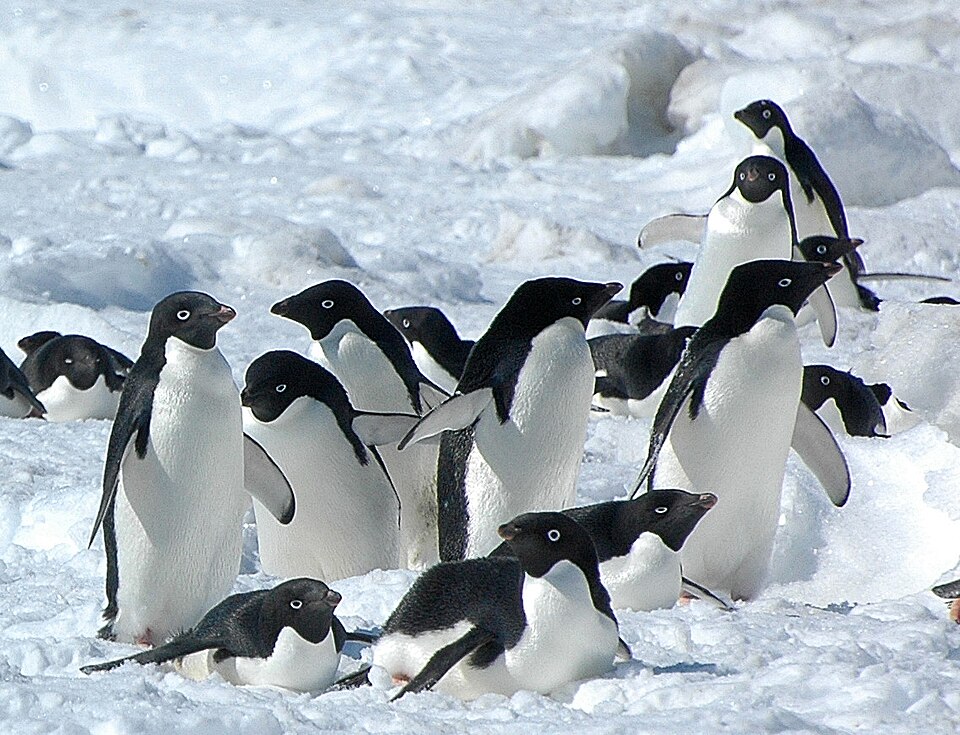
Adélie penguin (Pygoscelis adeliae) near Snow Hill, Antarctica (2007). Source: Wikimedia.

Looking at the data

Once you have loaded your data, you should check to see if it looks the way you think it should.
There are a few quick ways to peek. You should type these into the Console window.

head(penguins)      # shows the first few rows
# A tibble: 6 × 8
  species island    bill_length_mm bill_depth_mm flipper_length_mm body_mass_g
  <fct>   <fct>              <dbl>         <dbl>             <int>       <int>
1 Adelie  Torgersen           39.1          18.7               181        3750
2 Adelie  Torgersen           39.5          17.4               186        3800
3 Adelie  Torgersen           40.3          18                 195        3250
4 Adelie  Torgersen           NA            NA                  NA          NA
5 Adelie  Torgersen           36.7          19.3               193        3450
6 Adelie  Torgersen           39.3          20.6               190        3650
# ℹ 2 more variables: sex <fct>, year <int>

glimpse(penguins)   # a sideways summary of all columns
Rows: 344
Columns: 8
$ species           <fct> Adelie, Adelie, Adelie, Adelie, Adelie, Adelie, Adel…
$ island            <fct> Torgersen, Torgersen, Torgersen, Torgersen, Torgerse…
$ bill_length_mm    <dbl> 39.1, 39.5, 40.3, NA, 36.7, 39.3, 38.9, 39.2, 34.1, …
$ bill_depth_mm     <dbl> 18.7, 17.4, 18.0, NA, 19.3, 20.6, 17.8, 19.6, 18.1, …
$ flipper_length_mm <int> 181, 186, 195, NA, 193, 190, 181, 195, 193, 190, 186…
$ body_mass_g       <int> 3750, 3800, 3250, NA, 3450, 3650, 3625, 4675, 3475, …
$ sex               <fct> male, female, female, NA, female, male, female, male…
$ year              <int> 2007, 2007, 2007, 2007, 2007, 2007, 2007, 2007, 2007…

View(penguins)   # a spreadsheet-style viewer (but you cannot edit values).

Data types

In the head() and glimpse() output above, you’ll notice that each column has a designation <abc> either below or beside it. These correspond to the “type” of data each column contains. The main data types you will encounter are listed below:

  • <chr> means character, which is text or a mixture of text, numbers & punctuation.
  • <fct> means factor, a special type of text where the levels are pre-defined (e.g. sex).
  • <dbl> means numbers with decimals, double, a type of numeric.
  • <int> means whole numbers, integer, another type of numeric.
  • <lgl> means logical, TRUE/FALSE values (not shown here).
  • <date> means calendar dates (also not shown here).

This is different from Excel. You should only put data of the same type together in a single column. If you mix data types, it will default to character.

Tidy data

What is tidy data?

A huge amount of effort in analysis goes into cleaning data so that it’s usable. Tidy data gives us a simple, consistent structure that makes analysis, modelling, and visualisation easier.

In tidy data:

  • Each variable forms a column
  • Each observation forms a row
  • Each value is a cell.

Our penguins dataset is already tidy:

# A tibble: 344 × 6
   species island    bill_length_mm bill_depth_mm sex     year
   <fct>   <fct>              <dbl>         <dbl> <fct>  <int>
 1 Adelie  Torgersen           39.1          18.7 male    2007
 2 Adelie  Torgersen           39.5          17.4 female  2007
 3 Adelie  Torgersen           40.3          18   female  2007
 4 Adelie  Torgersen           NA            NA   <NA>    2007
 5 Adelie  Torgersen           36.7          19.3 female  2007
 6 Adelie  Torgersen           39.3          20.6 male    2007
 7 Adelie  Torgersen           38.9          17.8 female  2007
 8 Adelie  Torgersen           39.2          19.6 male    2007
 9 Adelie  Torgersen           34.1          18.1 <NA>    2007
10 Adelie  Torgersen           42            20.2 <NA>    2007
# ℹ 334 more rows

This also ensures different variables measured on the same observation always stay together.

Tidying ‘untidy’ data

Untidy data are arranged in any other way, e.g, when column names are actually values, or when several variables are crammed into one column. Here’s some untidy data on Weddell seals, which also live in Antarctica.

Each column represents a combination of variable and year, so the dataset is not tidy — the years are stored as column headers.

weddell <- tibble(
  seal_id = c("W01", "W02", "W03", "W04", "W05"),
  length_2022 = c(260, 250, 270, 255, 265),
  weight_2022 = c(420, 390, 450, 410, 430),
  length_2023 = c(265, 253, 275, 260, 270),
  weight_2023 = c(430, 400, 460, 420, 440)
)

weddell
# A tibble: 5 × 5
  seal_id length_2022 weight_2022 length_2023 weight_2023
  <chr>         <dbl>       <dbl>       <dbl>       <dbl>
1 W01             260         420         265         430
2 W02             250         390         253         400
3 W03             270         450         275         460
4 W04             255         410         260         420
5 W05             265         430         270         440

This layout hides the meaning of the data:

  • Year is buried in the column names
  • Each row mixes multiple observations (2022 and 2023) for the same seal

Making it tidy

We can tidy the seal data by turning those year-specific columns into variables for year, length, and weight.

weddell_tidy <- weddell |>
  pivot_longer(
    cols = starts_with(c("length", "weight")),
    names_to = c(".value", "year"),
    names_sep = "_"
  )
weddell_tidy
# A tibble: 10 × 4
   seal_id year  length weight
   <chr>   <chr>  <dbl>  <dbl>
 1 W01     2022     260    420
 2 W01     2023     265    430
 3 W02     2022     250    390
 4 W02     2023     253    400
 5 W03     2022     270    450
 6 W03     2023     275    460
 7 W04     2022     255    410
 8 W04     2023     260    420
 9 W05     2022     265    430
10 W05     2023     270    440

Now each row is a single observation: one seal, in one year, with one set of measurements
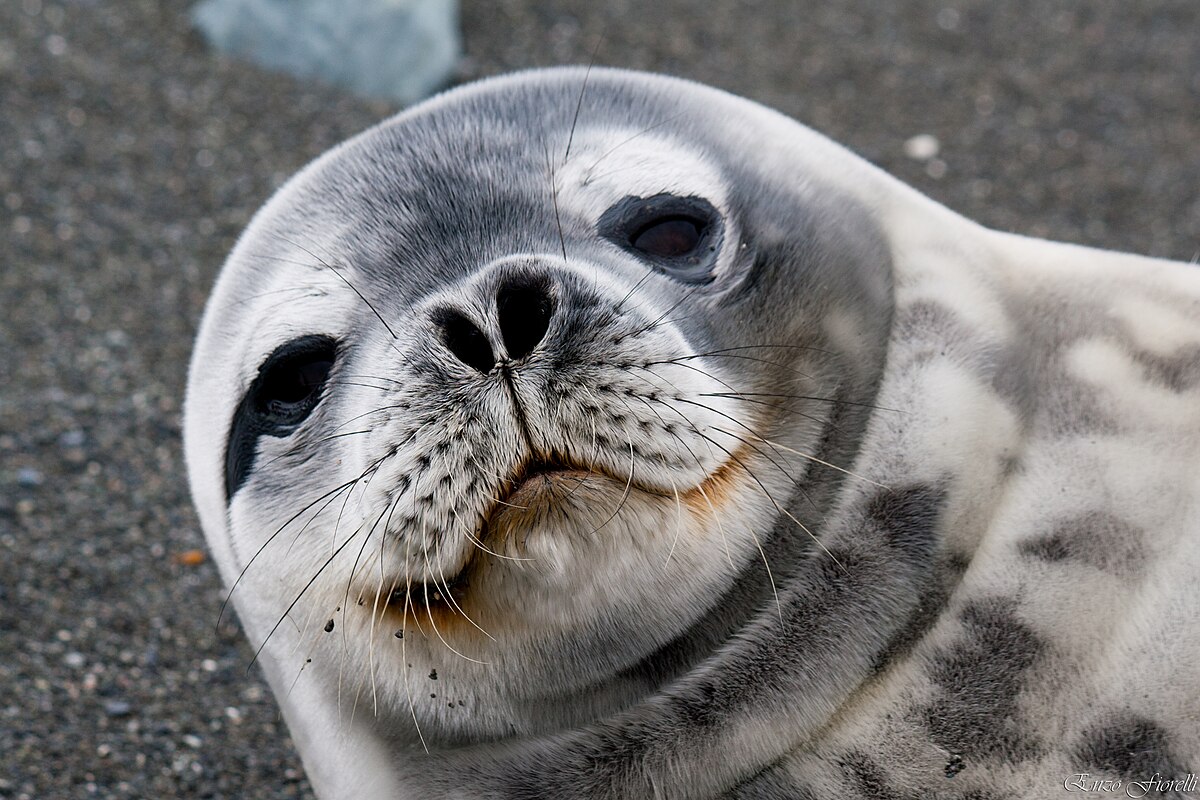
Weddell seal (Leptonychotes weddellii). Image taken by enzofloyd CC-BY-SA 3.0

Cleaning and preparing for analysis

Let’s return to our penguins data.

# A tibble: 344 × 8
   species island    bill_length_mm bill_depth_mm flipper_length_mm body_mass_g
   <fct>   <fct>              <dbl>         <dbl>             <int>       <int>
 1 Adelie  Torgersen           39.1          18.7               181        3750
 2 Adelie  Torgersen           39.5          17.4               186        3800
 3 Adelie  Torgersen           40.3          18                 195        3250
 4 Adelie  Torgersen           NA            NA                  NA          NA
 5 Adelie  Torgersen           36.7          19.3               193        3450
 6 Adelie  Torgersen           39.3          20.6               190        3650
 7 Adelie  Torgersen           38.9          17.8               181        3625
 8 Adelie  Torgersen           39.2          19.6               195        4675
 9 Adelie  Torgersen           34.1          18.1               193        3475
10 Adelie  Torgersen           42            20.2               190        4250
# ℹ 334 more rows
# ℹ 2 more variables: sex <fct>, year <int>

The dataset is already tidy, but that doesn’t mean it’s completely clean. Real datasets often have:

  • messy or inconsistent column names,
  • extra variables we don’t need,
  • values that need to be converted or fixed, or
  • missing values.

We often need to clean and prepare imported data before analysis. You can:

  • rename() columns to make them clearer
  • select() only the variables you need
  • filter() rows to focus on certain observations
  • mutate() to create new variables
  • arrange() to sort your data

Cleaning and preparing for analysis

Here are some examples of cleaning steps

Rename columns to help understanding:

penguins <- penguins |> rename(bill_length_mm = bill_len,
                   bill_depth_mm = bill_dep) # new_name = old_name

Select only the columns you need for your analysis:

# Sometimes we only need a few columns:
penguins <- penguins |> select(species, island, body_mass)

Subset the data, e.g. to focus on a single species:

# Sometimes we want to focus on just one subset, a single species:
penguins <- penguins |> filter(species == "Adelie")

Create a new column from existing data:

penguins <- penguins |> mutate(weight_kg = body_mass_g / 1000)

Rearrange the order of the table according to one or more columns:

penguins <- penguins |> arrange(bill_length_mm)

Dealing with missing values

Sometimes datasets have ‘holes’: a penguin might have been captured but not weighed, for instance. Let’s look at the first ten penguin body mass measurements of our penguins:

penguins$body_mass_g[1:10]
 [1] 3750 3800 3250   NA 3450 3650 3625 4675 3475 4250

The special value NA is how R identifies missing data. What happens if you try to take the mean?

mean(penguins$body_mass_g)
[1] NA

One solution for some functions is to tell R to ignore NA values in its calculations:

mean(penguins$body_mass_g, na.rm = TRUE) 
[1] 4201.754

However, for some functions, ignoring NA is not possible and R will return an error message.

Sometimes it’s appropriate to remove entries missing values from the dataset entirely

# Returns TRUE for cells where sex is unknown
is.na(penguins$sex)

# Keeps rows where sex *is* known:
penguins_clean <- penguins |> filter(!is.na(sex))

# Removes rows with missing data in *any* column:
penguins_clean <- penguins |> remove_missing()   

A picture of the claymation character Pingu with an obstinate expression, captioned with the text "Well now I'm not doing it"

Chaining steps with pipes

Often, we want to do several of these actions in a row.
The pipe operator |> lets us pass the result of one step straight into the next:

penguins |>
  remove_missing() |>
  filter(species == "Gentoo") |>
  mutate(weight_kg = body_mass_g / 1000) |>
  select(species, island, weight_kg)

Reading this top to bottom is almost like reading a recipe:

  • Start with the whole penguins data set
  • Filter for the species Gentoo
  • Calculate weight in kg
  • Select just the columns needed for your analysis

This makes your code readable for both you and anyone else who needs to check it later.

Recap & next steps

  • Data wrangling is about preparing data for analysis.
  • Always inspect what you imported.
  • Tidyverse functions like filter, mutate, select, arrange, rename are your everyday tools.
  • Pipes make your workflow clear and logical.
  • Missing values (NA) are common and should be handled.

You’ve now learned how to import and tidy real biological datasets. Next, we’ll take a look at how to summarise this data using handy functions from the tidyverse.