This course is designed for students in life sciences learning statistics—maybe for the first time ever! It may also be useful as a refresher before taking a more advanced course, or for those who have some familiarity with statistics but have never used R. You may be familiar with spreadsheets or point‐and‐click statistics software like GraphPad Prism, but have not yet used command‐based tools. We will treat programming as a logical set of instructions—much like a laboratory protocol—that you write, share, and revise.
If you’ve never written a line of code before, that’s perfectly fine—think of programming as writing a recipe or a set of instructions. Unlike point‐and‐click tools, R scripts are reproducible and transparent: anyone can rerun your code and get the same results, or inspect exactly how each number was computed.
In contrast, graphical interfaces may feel easier at first, but they often hide crucial details and make it hard to repeat or share your work.
R is a programming language and environment specifically designed for statistical computing and data analysis. It provides:

RStudio is a user-friendly interface for working with R. It brings together:
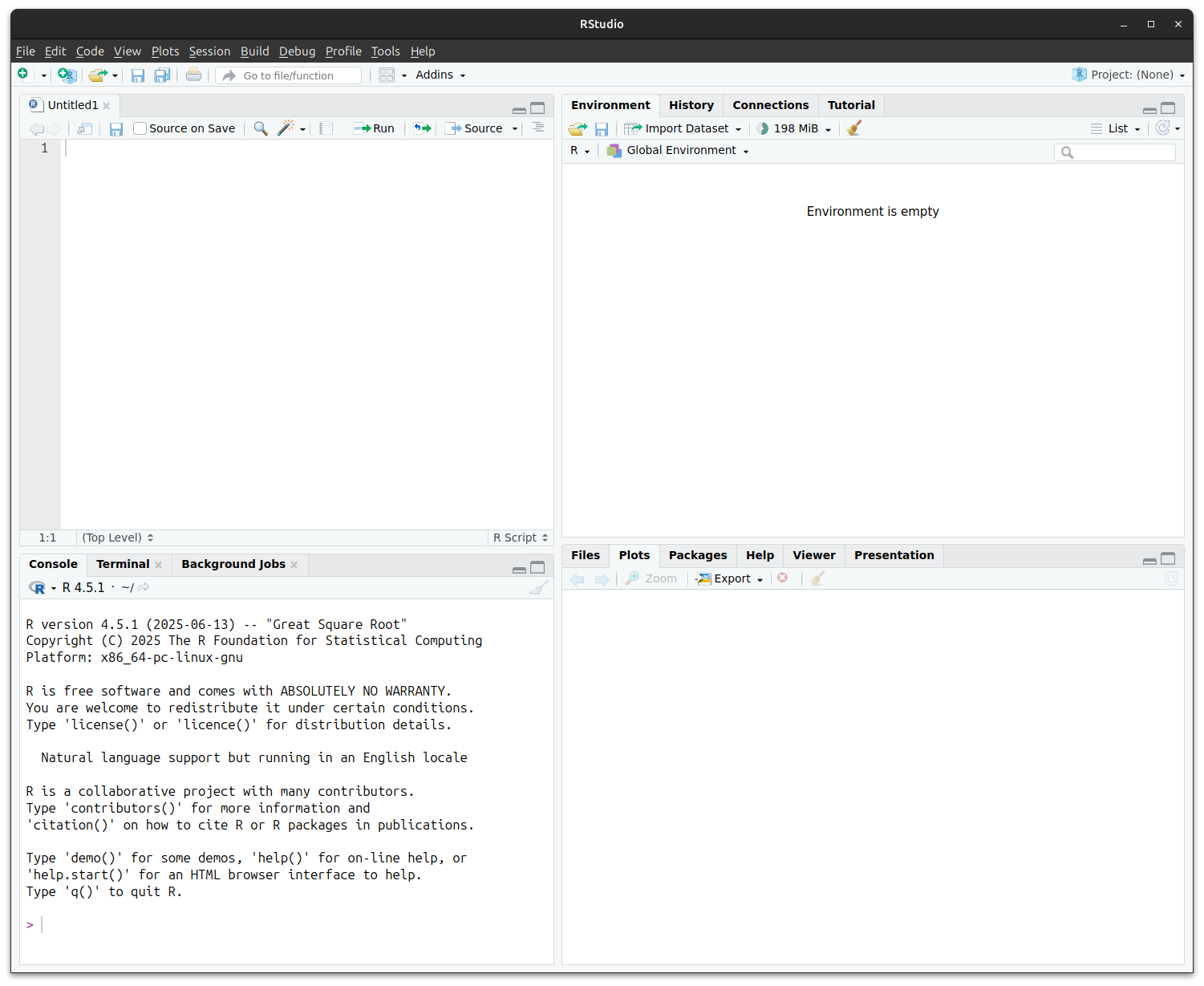
The RStudio environmnet lets you see your code, files, output etc. all together:
mean(x) takes a numeric object x and returns its average.Some functions in R are so fundamental that they look a bit different from everyday verbs:
c() – combine values into a single vector.
: – creates a simple sequence of integers.
seq() – more flexible sequence builder.
rep() – repeat values.
💡 These are often called “base R” helper functions — you’ll use them all the time, even when working with more advanced packages.
+, -, *, / let you do maths>, <, ==, != let you ask questions such as “is this value bigger than that one?”|> (or %>% in older code) sends the result of one function into the next, making code step-by-step and clear<- or = store results in a nameHere’s how they work:
# Assignment operators
x <- 10 # Give the name x the value of 10
y = 5 # = also works for assignment but is discouraged
name <- "Danna" # Text should be enclosed in quotation marks ""
# Arithmetic operators
2 + 3 # 2 plus 3
5 * 4 # 5 times 4, i.e. 5 × 4
10 / 2 # 10 divided by 2, i.e. 10 ÷ 2
2^2 # 2 to the power of 2
x + y # Adds the value of x and y, i.e. 15
# Logical operators
3 < 2 # Is 3 less than 2? No, returns FALSE
7 != 8 # Is 7 not equal to 8?, Yes, returns TRUE
1 + 3 == 2^2 # Is 1 + 3 equal to 2^2? Yes, returns TRUE. Note the two equals signs!
# Logical operators can also work for text
"Cat" == "Dog" # Is "Cat" equal to "Dog"? No, returns FALSE
"cat" != "CAT" # Is lowercase "cat" not equal to uppercase "CAT"? R is case sensitive.
# Pipe operators
c(1, 2, 3, 4, 5) |> mean() # Mean is equal to 3
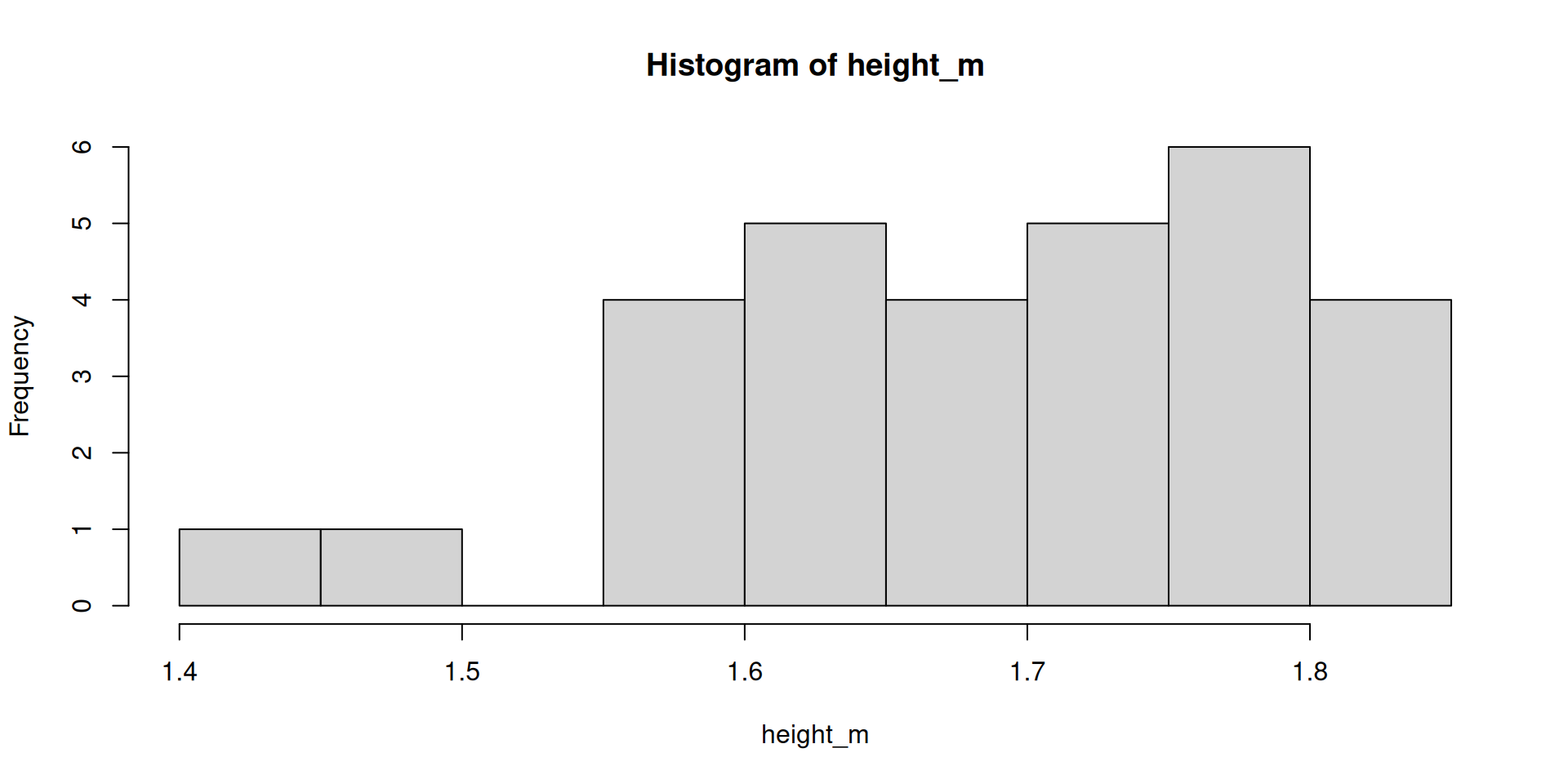
c(1, 2, 3, 4, 5) %>% mean() # Equivalent to above<- (“gets”) is the long-standing R convention; = also works in most scripts but can clash inside function callsweight_kg <- 70 👉 “weight_kg gets 70”## is ignored by R—use it to explain why a step exists or what it does# ---- load data ----Let’s look at a simple example of how these are used. Here’s an example data set, where we recorded the heights of a sample of 30 students in an undergraduate degree programme:
We can calculate the mean and standard deviation (SD) of like so:
The mean and standard deviation of student heights is 1.69±0.10 m.
getwd() to check where R is currently lookingsetwd("path/to/folder") to change it (but best practice is to use RStudio Projects instead)C:/Users/... in your code. This makes it less transferrable if you rearrange files or share your code with someone else.help(mean) or ?mean to see function documentation.help(package = "dplyr") to browse all functions in a package.You’ve now set up R, learned the basic grammar of objects and functions. In the next section, we will look at a useful add-on package to R–the tidyverse.